 Asta Sand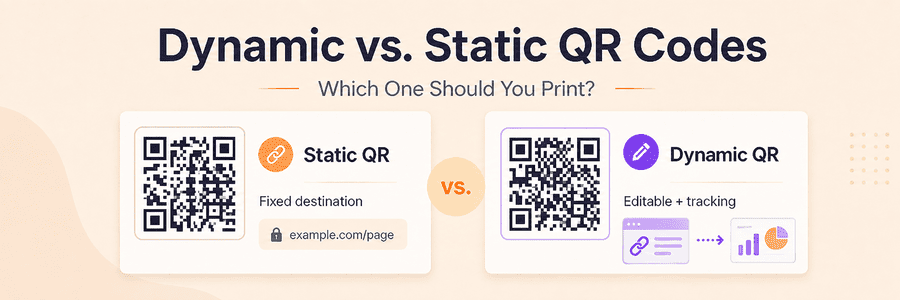
A QR code is easy to add to a design. The harder decision is choosing what should happen after that design has been printed.
If the destination is permanent, a static QR code is usually enough. If the code will appear on packaging, menus, signs, or anything else that may stay in use for months, a dynamic QR code gives you more room to correct or update the link later.
That is the practical difference between static and dynamic QR codes: one stores the final URL, while the other points to a manageable short link.
Static vs. dynamic QR codes at a glance
| Feature | Static QR code | Dynamic QR code |
|---|---|---|
| Change the destination after printing | No | Yes |
| Record redirect requests | No built-in tracking | When tracking is enabled |
| Uses a short link | No | Yes |
| Depends on a redirect service | No | Yes |
| Requires a MeoVC account | No | Yes |
| Suitable for long-term printed materials | With a permanent URL | While the short link remains active |
A static code keeps things simple. A dynamic code adds flexibility, but it also relies on a short-link service remaining available.
How static and dynamic QR codes work
Static QR codes
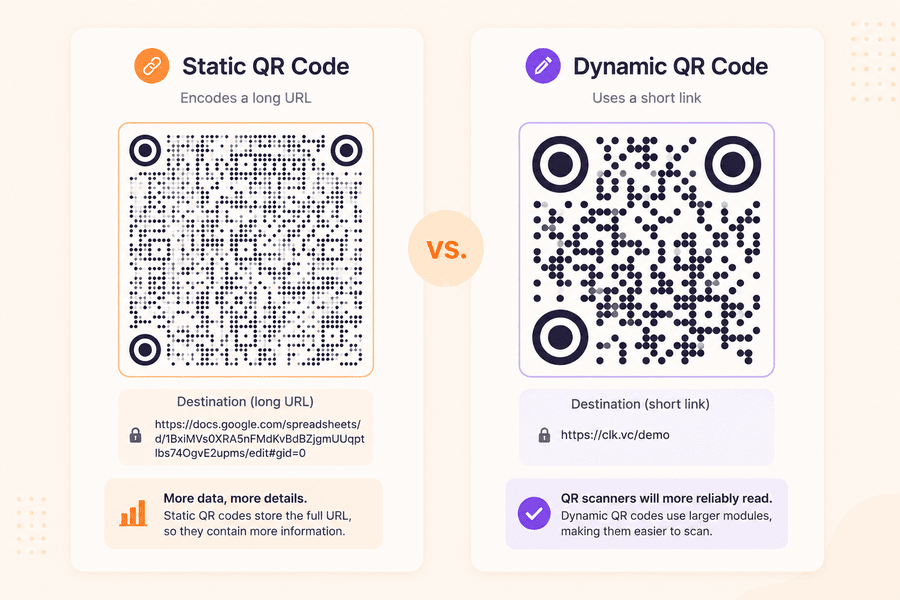
A static URL QR code contains the complete address of the page it opens. A phone reads that address from the code and goes straight to the page.
Once the code has been created, the stored URL is fixed. This is not a problem when the address is stable. You can still update the page itself—for example, change the dishes on an online menu—provided that its URL stays the same.
This makes a static code a sensible choice for a company website, a permanent contact page, or printed material that can be replaced without much trouble.
You can create one with MeoVC's Free URL QR Code Generator. No account is required.
Dynamic QR codes
A dynamic QR code contains a short-link URL. When the code is scanned, the short link sends the visitor to the destination currently selected in MeoVC.
The printed QR image continues to point to the same short link, so the destination behind it can be changed later.
Every short link includes a slug—the part after the domain. In a link ending with /menu, the slug is menu.
The slug should be treated as part of the printed code. Changing the destination is safe; changing the slug creates a different short-link address and leaves the printed QR code pointing to the old one.
This is especially useful when printed items have a longer life than the pages they link to. A restaurant may reuse the same menu cards for years, while its online menu moves to a new URL. Product packaging creates the same problem: boxes can remain in circulation long after a setup guide or support page has been reorganized.
Which type should you choose?
Choose a dynamic QR code when
A dynamic code is the safer option when the printed material is expensive, difficult to replace, or expected to remain in use for a long time. It is also the better fit when:
- the destination may move;
- you want the option to correct a URL after printing;
- scan analytics are useful;
- you can give QR placements their own short links or campaign tags for separate reporting.
Typical uses include packaging, menus, signs, posters, brochures, catalogs, stickers, and printed instructions.
The destination will not change by itself. It remains under your control in MeoVC and changes only when you edit the short-link settings.
Choose a static QR code when
Use a static code when the destination already has a stable, approved URL and tracking is not important. It is often the simplest choice for:
- a permanent company website or contact page;
- a short-lived handout or event material;
- a small project where reprinting would be easy.
The main risk is discovering a typo or changing the encoded address after printing. You only need a new code when you cannot keep the old address working or redirect it under your control. A typo on somebody else's domain cannot be repaired by changing your own page.
Tracking, requirements, and limitations
Scan tracking
A static code opens its stored URL directly, with no built-in layer for recording the scan.
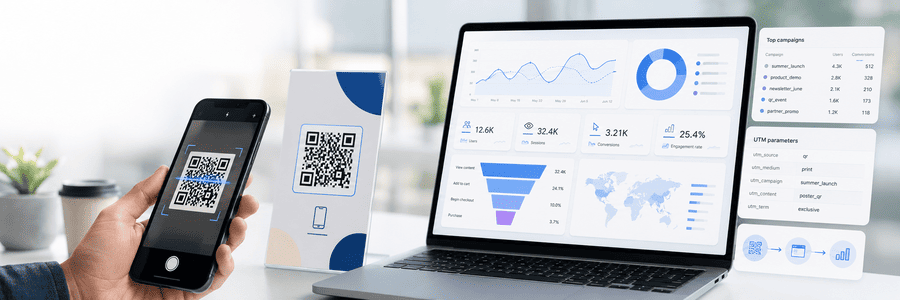
A dynamic code reaches the MeoVC short link first. When tracking is enabled, the accepted request can be recorded before the redirect. To compare QR placements with other traffic reliably, use a dedicated short link or campaign tag for each channel; the same encoded URL does not reveal whether it was scanned or typed manually.
Depending on your setup, reports may include:
- event time;
- link;
- domain;
- campaign;
- country and region;
- device;
- browser.
Learn more about QR scan tracking.
The short link must remain active
The flexibility of a dynamic QR code comes with one important dependency: the short link must continue to exist.
Deleting it, changing its slug, or losing access to the redirect service can stop an already printed code from working. Updating only the destination URL does not have this effect.
Internet access and account requirements
Both types need internet access when they open a website.
A static URL QR code can be created with MeoVC's free generator without registration. A dynamic code requires a MeoVC account and a short link with a chosen slug and destination.
How to create and test your QR code
Create a static QR code
- Open the Free URL QR Code Generator.
- Enter the final URL.
- Customize the colors, module shape, and corner style if needed.
- Add a logo if appropriate.
- Export the code as PNG, JPG, SVG, or WebP.
- Test it before printing.
Before export, check the address one more time. The URL encoded in the finished code cannot be edited later.
Create a dynamic QR code
- Create a MeoVC account or sign in.
- Create a short link.
- Choose a slug that can remain unchanged.
- Enter the destination URL.
- Use the QR code connected to the new short link.
- Add the code to your print layout.
- Scan it and confirm that it opens the correct page.
- Change the destination URL in the link settings.
- Scan the same QR code again and confirm that it opens the new page.
That last test is worth doing before the design goes to print. It confirms that the QR code is connected to the short link you plan to manage, rather than directly to the destination page.
Test before printing
Do not rely only on a scan from your monitor. Size, paper, contrast, placement, and lighting can all affect a printed QR code.
The overview of QR code size, quiet zones, and print testing explains these checks in more detail.
- Print a sample at the final size.
- Confirm that the code opens the correct page.
- Test it with several phones.
- Keep the clear space around the code intact.
- Check it under the lighting where it will be used.
- For a dynamic code, change the destination and scan the same sample again.
- If tracking is enabled, confirm that the scan appears in your report.
- Record which short link is used in each print layout.
For a static code, approve the final destination URL before printing. For a dynamic code, approve both the destination and the slug.
Try a dynamic QR code
Plan limits and billing periods can change. Check the current MeoVC pricing and plan limits before printing a long-running campaign.